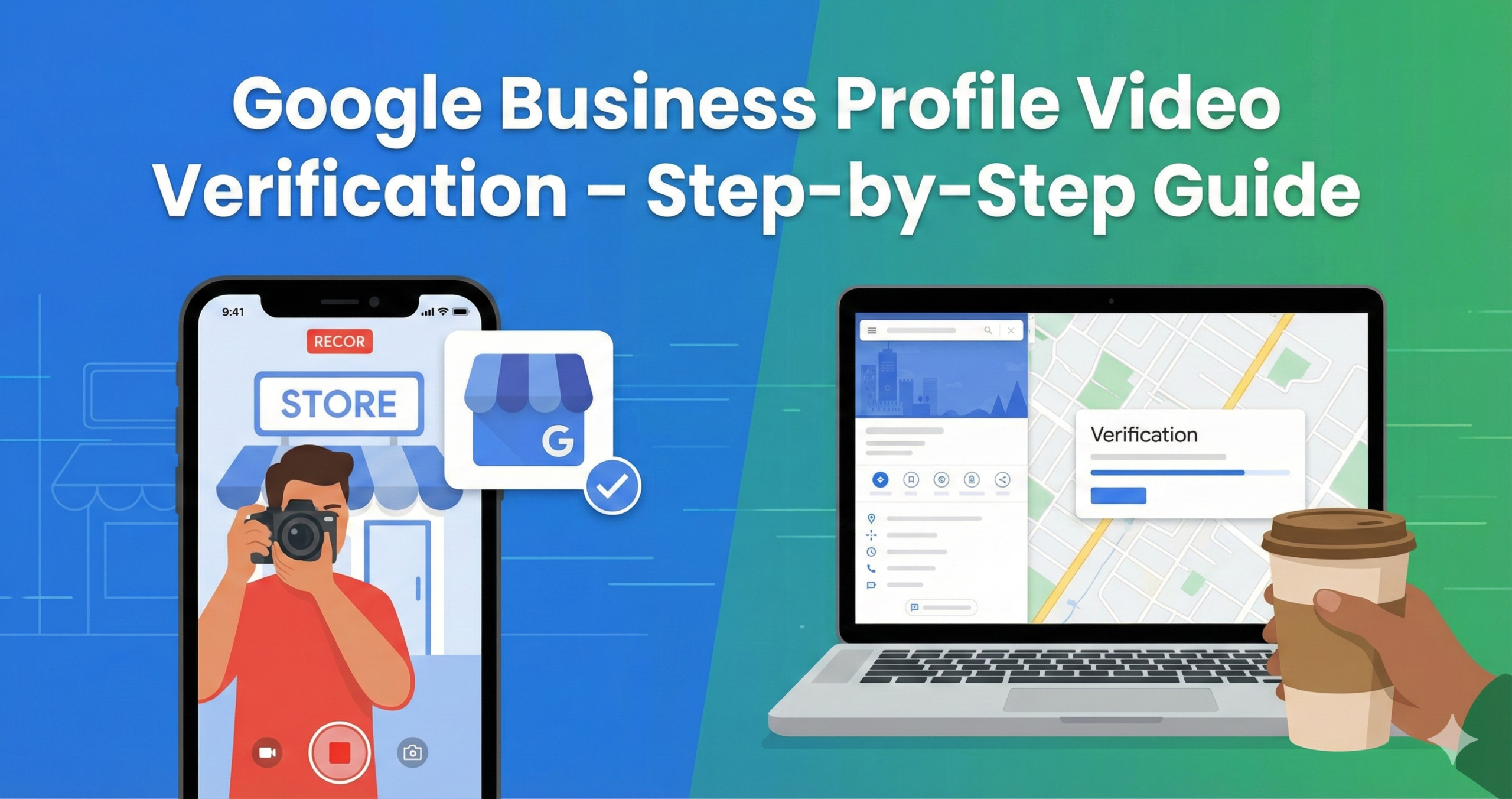
Getting your business verified on Google is essential for visibility and customer trust. With Google increasingly using video verification for Google Business Profiles, knowing exactly what to do can save you time and frustration. This comprehensive guide walks you through the entire Google Business Profile video verification process, from preparation to submission.
Introduction to Google Business Profile Video Verification
Video verification is Google’s preferred method for confirming that your business is legitimate and operates at the location you’ve claimed. Unlike postcard verification, which can take weeks, video verification can be completed in minutes and reviewed within days.
This verification method requires you to record a continuous video showing your business location, operations, and proof that you’re authorized to manage the business. The video is submitted directly through your Google Business Profile and reviewed by Google’s team.
For many businesses, especially service area businesses (SABs), video verification is now the only option available. Understanding how to properly complete this process is crucial for maintaining an accurate and verified Google Business Profile.
Who Needs Video Verification
Storefront Businesses
Retail stores, restaurants, salons, and other businesses with physical locations that customers visit need to show their storefront, signage, and interior workspace during verification.
Hybrid Businesses
Businesses that have both a physical location and provide services at customer locations (like contractors with offices) need to verify their main business location.
Service Area Businesses
Contractors, plumbers, landscapers, and other businesses that serve customers at their locations must verify using their home office or service vehicle as their business location.
Google has made video verification mandatory for service area businesses and increasingly common for all business types. The verification process varies slightly depending on your business type, but the core requirements remain the same.
What to Avoid During Video Verification
Important: Your verification video is for Google’s internal use only and will not be publicly posted. However, you should still be careful about what you include in your recording.
Do Not Include These in Your Video:
- People’s faces (including customers, employees, or yourself)
- Sensitive personal information (SSN, tax ID numbers, bank account details)
- Private financial documents (bank statements, tax returns)
- Customer information (invoices with customer details, client lists)
- Security features (alarm codes, safe combinations, security system details)
- Confidential business information (proprietary processes, trade secrets)
Google only needs to see proof of your business location and your authorization to manage it. Anything beyond that could potentially compromise privacy or security.
Before You Start the Video Verification Process
Essential Requirements:
- Mobile device required: Video verification must be completed on a smartphone or tablet, not a desktop computer.
- One continuous take: You cannot stop and restart the recording. Plan your route through the business beforehand.
- Time constraints: Your video should be at least 30 seconds but no longer than 3 minutes. Aim for 1-2 minutes for best results.
- Access to Google Business Profile: You must be logged into the Google account that manages the business profile.
- Chrome browser recommended: Some users report issues with Safari and other browsers.
- Camera and microphone permissions: Your browser needs permission to access your device’s camera and microphone.
Plan Your Video Path
Before recording, walk through your business and plan exactly what you’ll show and in what order. Remember that you can’t pause or edit the video, so having a clear plan is crucial for success.
For best results, practice your verification video path at least once before starting the actual recording. This will help you identify any obstacles or issues beforehand.
How to Access Video Verification in Google Maps
- Open the Google Maps app on your mobile device
- Tap your profile icon in the top right corner
- Select “Your Business Profile” or “Your contributions” then “Your Business Profile”
- If you manage multiple businesses, select the one you want to verify
- Look for the “Get verified” button and tap it
- If prompted to choose a verification method, select “Video verification” (Note: Google may only offer one verification method)
- Read the instructions carefully before proceeding
Alternatively, you can access verification through a web browser by visiting business.google.com and following the verification prompts. However, you’ll still need to complete the actual video recording on a mobile device.
What to Show in Your Verification Video
Your verification video needs to demonstrate three key elements to Google: your location, your business operations, and your management authority. Here’s what to include for each:
Start by Introducing Yourself as the Business Owner
Begin your video by verbally stating your name and your role at the business. For example: “Hi, I’m [Your Name], the owner of [Business Name].” This helps establish your authority right from the start.
Show Your Surroundings
- Start recording outside your business (if possible)
- Capture nearby street signs, landmarks, or neighboring businesses
- Show the building exterior and any address numbers
- Pan slowly to give Google context about your location
Show Your Business Name on a Permanent Fixture
- Capture your business signage that matches your Google Business Profile name
- For service area businesses without signage, show your business name on a vehicle, uniform, or equipment
- If you work from home, show your business name on marketing materials or equipment
Show Proof of Access and Management
- Unlock and open the front door of your business
- Access restricted areas like storage rooms, offices, or behind counters
- Operate business equipment (cash register, specialized tools, etc.)
- For home-based businesses, show your workspace and business equipment
- For service businesses, show your service vehicle and tools
“The most important thing to capture is management proof. This portion of the video should prove that you have access to the building apart from general customer access.”
For Storefront Businesses
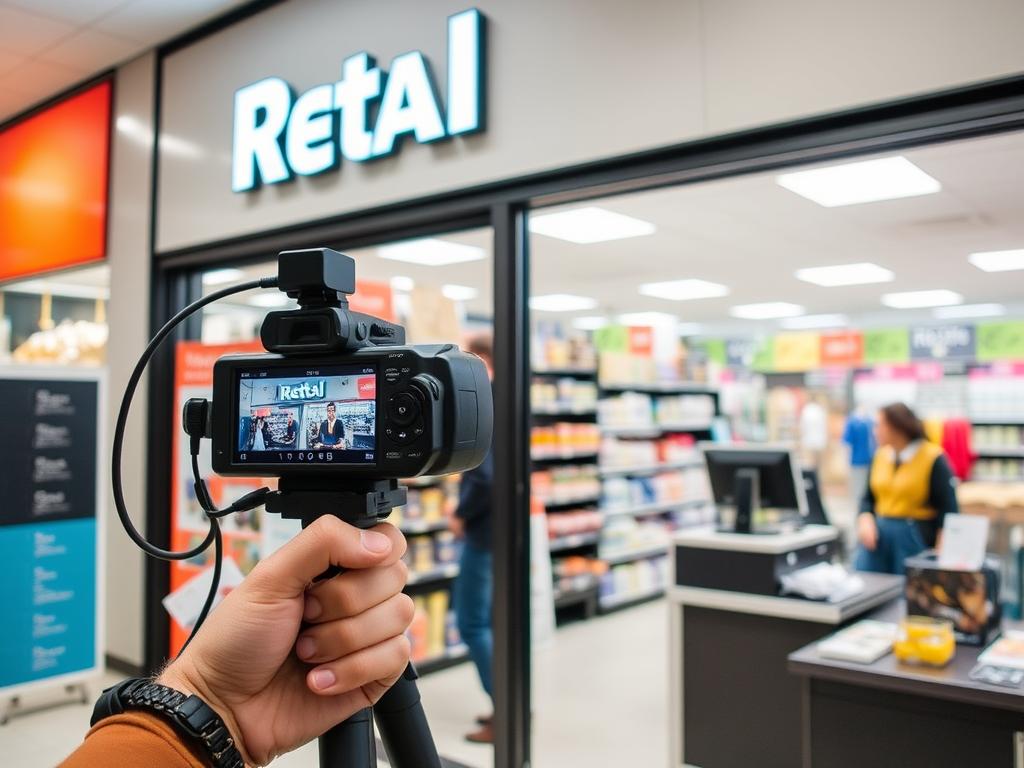
- Start outside, showing street signs and your storefront
- Record your business signage and address number
- Show yourself unlocking and entering the business
- Pan around the interior to show products, services, or workspace
- Access restricted areas like storage rooms or staff-only sections
- Show business-specific equipment or tools
For Service Area Businesses
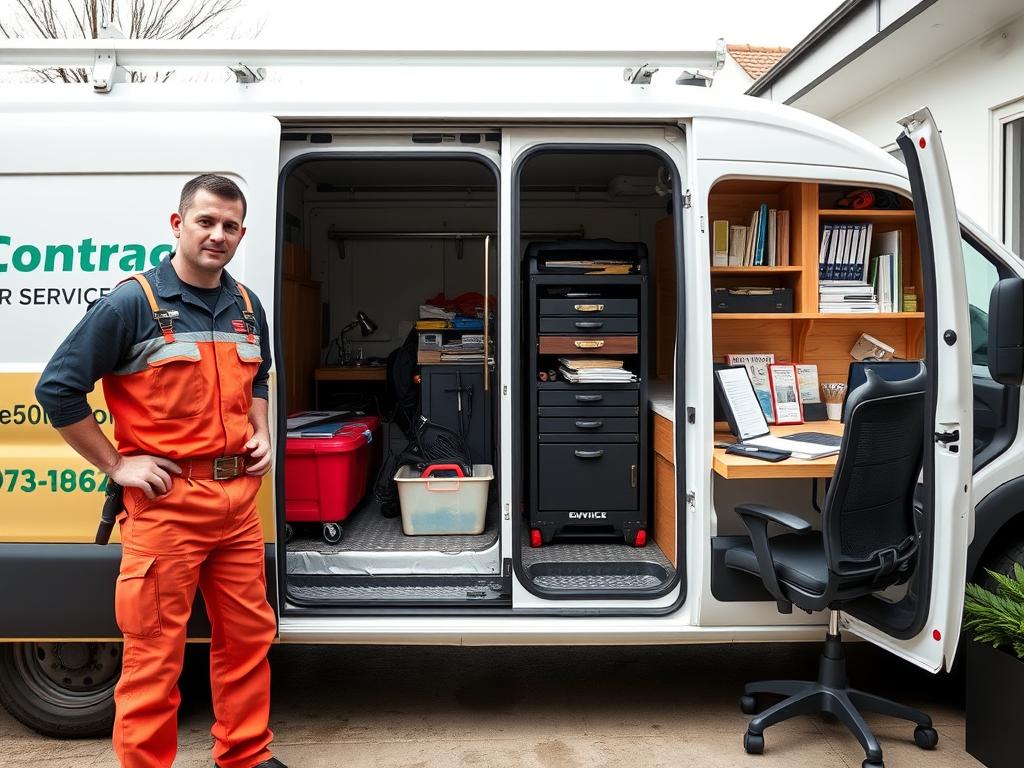
- If you have a service vehicle, start by showing the vehicle with your business name
- Show your tools and equipment inside the vehicle
- If working from home, show your home address and entrance
- Display your home office or workspace
- Show business equipment, software, or tools specific to your service
- Access business documents or marketing materials with your business name
Tips to Avoid Verification Rejection
Technical Tips
- Use good lighting – record during daylight hours if possible
- Hold your camera steady or use a stabilizer
- Ensure your internet connection is stable before uploading
- Use the Chrome browser app instead of Safari
- Keep your video under 2 minutes to avoid upload issues
- Allow camera and microphone permissions when prompted
Content Tips
- Show all three required elements: location, business operations, and management proof
- Ensure your business name in the video matches your Google Business Profile exactly
- Move between different areas of your business (don’t stay in one room)
- Clearly demonstrate your authority to manage the business
- Speak clearly if providing verbal information
- Follow Google’s instructions on the screen during recording
Pro Tip: If your first verification attempt fails, try making a shorter video (30-45 seconds) that focuses only on the essential elements. Sometimes shorter videos have higher success rates despite Google saying longer videos are better.
What Happens After Submission
After you submit your verification video, Google will review it to ensure it meets all requirements. Here’s what to expect:
- Review time: Google typically takes 1-5 business days to review your video
- No notification: Despite what Google says, many users report not receiving a notification when verification is complete
- Check status: Check your Google Business Profile daily to see if verification is complete
- Successful verification: If approved, you’ll have full access to edit your business information
- Failed verification: If rejected, you may see a “Review issues” warning or a “Get verified” button again
During the review period, avoid making multiple verification attempts unless prompted to do so by Google. Multiple attempts can confuse the system and potentially delay your verification.
What to Do if Your Video Gets Rejected

If your verification video is rejected, don’t panic. Here’s what to do:
- Check for feedback: Look for a “Review issues” warning in your Google Business Profile that might explain why your video was rejected
- Address specific issues: If Google provides feedback, make sure to address those specific issues in your next attempt
- Review the requirements: Make sure your next video includes all three key elements: location, business operations, and management proof
- Try a different approach: If you focused on certain aspects in your first attempt, emphasize different elements in your second try
- Shorten your video: Try a shorter video (30-45 seconds) that focuses only on the essential elements
- Check for technical issues: Ensure good lighting, stable camera movement, and clear visibility of all important elements
- Try a different verification method: If available, consider trying phone, email, or postcard verification instead
You can attempt video verification multiple times if needed. Each new attempt gives you an opportunity to correct issues from previous submissions.
How to Delete Your Video
If you need to delete a verification video you’ve submitted (for example, if it contains sensitive information you didn’t mean to include), follow these steps:
- Log in to your Google Business Profile on a desktop computer
- Click on “Info” in the left menu
- Find the “Verification” section
- Look for the option to “Delete verification video” or contact Google Support
Note that deleting your verification video will not automatically trigger a new verification opportunity. You may need to contact Google Business Profile support to request a new verification attempt.
Important: Once a video is submitted to Google, it may not be possible to completely delete it from Google’s servers. This is why it’s crucial to avoid including sensitive information in your verification videos.
Conclusion
Successfully completing Google Business Profile video verification is essential for maintaining an accurate online presence for your business. By following the steps in this guide, you can navigate the verification process with confidence and avoid common pitfalls.
Remember that video verification is designed to protect legitimate businesses by preventing fraudulent listings. While the process may seem complicated at first, proper preparation and understanding of Google’s requirements will help ensure your verification is approved quickly.
Keep this guide handy as you prepare for and complete your Google Business Profile video verification. With the right approach, you’ll have your business verified and ready to attract new customers in no time.
Need Help Getting Verified and Optimized?
If you’re struggling with Google Business Profile verification or want expert help optimizing your online presence, our team at Rocket Launch Media is here to help. We specialize in helping small businesses like yours navigate Google’s requirements and maximize their online visibility.
Or contact us directly at support@rocketlaunchmedia.com